I recently setup my Synology NAS to host a Pi-Hole container and I missed a step while setting it up. I forgot to reroute the NAS’s DNS to an internal bridge network IP, the result apparently was my losing access to my own Plex server. The Plex server was just one symptom, all of the applications running on the NAS could not access the internet essentially because DNS wasn’t working. So woops. I share because that’s how I got here, but it taught me how to handle this problem. As usual finding the answer was not easy.
Solution
Right off the bat here is the Reddit post where I found the answer, but I wanted to explain it more with some graphics. The screenshots I am using are from other sources because at the time I was too preoccupied with getting my music back online to think about taking screenshots.

The symptoms I experienced were:
- Plexamp couldn’t play music anymore, so it started running through every track in my playlist without stopping. Very annoying.
- Confirmed this behavior on two devices.
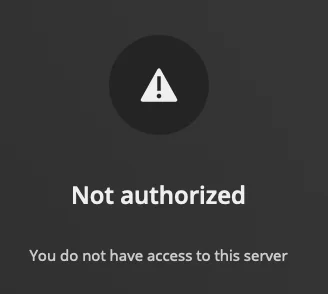
- Logged into NAS and opened up Plex, I see my server is unavailable and I get the error shown on the left when I try to view my server’s settings. Not a good feeling to hear that I am not authorized to my own server.
Pause here to fix the root cause, whatever it is in your case. For me I had to resolve my DNS issues and restart my NAS. I cannot predict root cause for everyone, that’s the point of this pause. Plex’s behavior is a symptom caused by a different problem entirely in my case.
Once you have fixed root cause
Then resolving this problem is actually very easy. Just finding the instructions is not easily found sadly. I don’t consider finding the answer in a Reddit post a “win”. Plex should have clear instructions on how to do this, but they don’t. This is what they have and it leaves out DSM: https://support.plex.tv/articles/204281528-why-am-i-locked-out-of-server-settings-and-how-do-i-get-in/. The only thing I found on the Synology website is this article, but frankly this isn’t a Synology problem.
These instructions are assuming you are not having problems with permissions. Double check your permissions, but this is likely not the issue.
Before you begin
For this to work properly you need to:
- Have a copy of the CURRENTLY INSTALLED version of Plex in order to perform reinstall.
- Make sure you can log into your online plex account, this is critical for this to work.
Uninstall Plex
Make sure to copy down the installed version number if you didn’t download a copy of the *.spk yet.

- Navigate to your NAS.
- Open package center and locate
Plex Media Server. - Open the package by clicking on the title (don’t click the Open button).
- You should a similar screen to what’s on the left.
- Click on the down arrow next to the Open button.

- Click on the
Uninstalloption in the context menu. - Click the Next button.
- This is critical – select:
Uninstall only.This is safe to do, you will not lose your data. - Continue with the uninstall until complete.
Reinstall Plex
At this point you require a copy of the same *.spk version you just uninstalled, for example I used: PlexMediaServer-PlexMediaServer-1.42.2.10156-f737b826c-x86_64_DSM72.spk.

- Perform the manual installation of the spk.
- When prompted by the installer for “Installation Type” as seen on the left select “Install using Plex Claim Token” – this is critical!
- Use the link provided in the prompt to get your claim token. This is why you need to be able to login to your account.
- Paste the token into the provided box and continue with installation.
After the installation is done, you should be back up and running. No data loss, no loss of configuration. Reopen the Plex site and see if your server is backup.