The Problem
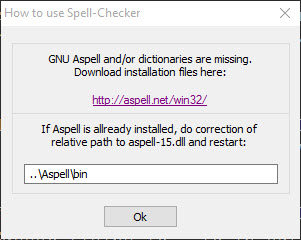
There is that once in a blue moon chance you will need to install ASpell manually and each time it is easy to forget how to do it properly. Simply put this is more of a Gotcha due to a small mistake that a lot of people make when installing ASpell.
The Gotcha
The Gotcha is – you probably did indeed install ASpell, but you forgot to install a dictionary. Tadahhhh – yep that’s it. Just forgot one step.
The Solution
The solution as mentioned in the previous section is to simply install the dictionary with your choice of language.
General Steps for v0.60.6.1
- Download the latest ASpell core program: ftp://ftp.gnu.org/gnu/aspell/aspell-0.60.6.1.tar.gz (always make sure to get the latest, this link was put here on 11/14/2015)
- Install the core program.
- Download your dictionary of choice such as the English dictionary:
- List of dictionaries: ftp://ftp.gnu.org/gnu/aspell/dict/0index.html
- English dictionary: ftp://ftp.gnu.org/gnu/aspell/dict/en/aspell6-en-2015.04.24-0.tar.bz2
Steps if you are using Notepad++ (uses ASpell Win32 v0.50.3)
If you are trying to use ASpell in conjunction with Notepad++, then follow the same template of steps as above, except use this link instead to get all of your binaries: http://aspell.net/win32/
First and foremost make sure your installation of Notepad++ and ASpell are going to be on the same drive. This important because Notepad++ assumes that ASpell is installed relative to its location.
- Download the ASpell v0.50.3 installer http://ftp.gnu.org/gnu/aspell/w32/Aspell-0-50-3-3-Setup.exe
- Install ASpell v0.50.3
- Download your dictionary, this is the English dictionary for example: http://ftp.gnu.org/gnu/aspell/w32/Aspell-en-0.50-2-3.exe
- Verify that the path used for Notepad++ to ASpell is actually pointing to the right place. This can be verified simply by doing the following:
- Go to your Notepad++ directory, Example: “C:Program Files (x86)Notepad++”
- Take the relative path shown under the ASpell plugin help (Figure 1), Example: “..Aspellbin”
- Combine the two and try to navigate there using the Run command or equivalent method, Example: “C:Program Files (x86)Notepad++..Aspellbin”
- If this takes you to your location, then everything should be fine. Restart Notepad++ and you should be able to use the plugin.
- If this doesn’t take you to your location – then you need to figure out why your relative path is wrong and correct it until the aforementioned trick works
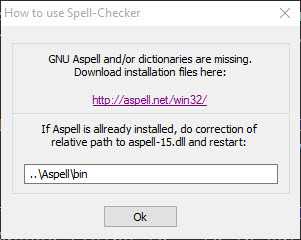 |
| Figure 1 – Help dialogue for Spell-Checker plugin that uses ASpell |
Conclusion
I think it is safe for me to say that, from an American perspective we usually assume everything is geared towards our American English. Obviously the ASpell program has broken that habit and forced the end user to actually choose instead of assume.